WhatsApp Favourites: What It Does and Who Sees It
You've seen a Favourites filter above your chats, or a Favourites section in Calls, and you want to know what WhatsApp Favourites does. It's a list of the people and groups you pick, so your top chats and calls sit in one place. It changes what you see in your own app. WhatsApp's help pages describe no notice to the people you add.
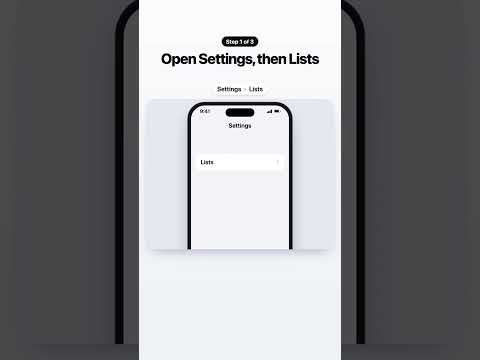
WhatsApp's help pages spell it "Favorites", so the menu steps below use that label. The steps below follow the Help Center articles "How to edit favorites", "How to edit favorites from the Chats tab" and "About lists".
What Favourites does
WhatsApp says you use favorites to organize your top chats and calls into one list, and you can manage that list from Settings, the Chats tab or the Calls tab.
It's one of four default lists, the filters you reach by swiping down on the Chats tab:
| List | What it shows |
|---|---|
| All | The default view of all your messages |
| Unread | Chats you've marked as unread or haven't opened yet |
| Favorites | Chats from your favorite contacts |
| Groups | All your group chats in one place |
A contact you add as a favorite appears in three places: the Chats tab, the Favorites list, and the Calls tab under Favorites. A chat stays in your normal chat list as well. Adding a favorite doesn't move it out of All.
Who sees your favourites?
Only you. WhatsApp describes the Favorites list as a way to organize your own chats and calls, and its help pages mention no message, label or notice sent to someone you add or remove. They don't promise silence in so many words either: they just describe it as your own filter.
Favorites are also a different feature from starring and pinning. Starring a message is its own feature, covered in WhatsApp starred messages. Pinning is another one: how to pin a message on WhatsApp explains the pin limits and who sees them. If you want a chat out of sight rather than at the top, see what happens when you archive a WhatsApp chat.
How to add favourites
You can add from three places: Settings, the Chats tab and the Calls tab. On Android, Settings sits under More options (three vertical dots). On iPhone, tap Settings or your profile picture.
From Settings
- Android: tap More options > Settings > Lists > Favorites > Add people or groups. iPhone: tap Settings (or your profile picture) > Lists > Favorites > Add people or group.
- Select people or groups, or search for a name.
- Tap the checkmark on Android, or Done on iPhone.
From the Chats tab
Tap and hold a chat. On Android tap the three dots, then Add to favorites. On iPhone tap Add to Favorites. Alternatively, open the Favorites list in Chats, tap Manage Favorites and add from there.
From the Calls tab
Tap Calls > Add to favorites for your first favorite, then choose people or groups and tap the checkmark (Android) or Done (iPhone). For more, tap Calls > More, then the add-person icon on Android or Add people or groups on iPhone. To see your full list, tap More in Calls on Android, or See all on iPhone.
How to remove or delete a favourite
Removing a favorite takes the chat out of the list. It doesn't delete the chat or the contact.
- On Android, tap and hold the chat, tap the three dots, then tap Remove from favorites. On iPhone, tap and hold the chat and tap Remove favorite.
- Or use Settings: Android More options > Settings > Lists > Favorites and the pencil icon, then the trash icon. iPhone Settings > Lists > Favorites > Edit, then the red minus, Delete and Done.
- From Calls: on Android, Calls > More, the pencil icon, then the trash icon. On iPhone, Calls > More > Edit, the red minus, then Delete > Done.
Can't see Favourites, or want it to open by default?
WhatsApp's help pages don't give a troubleshooting article for a missing Favorites list, so only the documented basics apply. Swipe down on the Chats tab to see your lists. The selected list is highlighted in green. The Favorites list shows chats from contacts you've added, so it will look empty until you add some.
Favorites is one of the four default lists, and WhatsApp's lists page says that if you delete one of the preset lists, you can recover it. On Android, tap More options > Settings > Lists, find Favorites under Available presets and tap Add. On iPhone, tap Settings (or your profile picture) > Lists and tap the plus next to it under Available presets.
On opening by default: the About lists page says lists stay applied until you change the filter view, or exit and re-open WhatsApp. It describes no setting to start on Favorites. What you can change is where Favorites sits in the row of lists. On Android, tap More options > Settings > Lists, tap the pencil, drag Favorites by its handle and tap the checkmark. On iPhone, tap Settings > Lists > Reorder, drag it and tap Done. If the whole row of filters is missing, our guide to WhatsApp chat filters not showing goes through it.
The sticker and GIF "favorites" are a different feature. You add those from the sticker tray or by holding a GIF in a chat, not from Lists.
Where Tenashi fits
A Favorites list is one person's shortcut. A team on one WhatsApp number needs the opposite: everyone seeing the same customers and knowing who owns which chat.
Tenashi has its own shared inbox for the chats and groups on a connected number. You can assign a chat to an agent, add labels and notes to the contact profile, and set follow-up reminders, so the important customers are marked for the whole team. That covers chats on your own connected business number, from the day you connect it. For the bigger picture, see our guide to WhatsApp for business. Plans start at $18/mo.
FAQ
What does WhatsApp Favourites do?
It gathers the people and groups you choose into one Favorites list, so your top chats and calls are easy to reach. The list appears as a filter in the Chats tab and under Favorites in the Calls tab. It's your own view, and no notice to the people you add is described.
Where do I find my WhatsApp favourites?
Swipe down on the Chats tab and tap Favorites. Favorite contacts also appear in the Calls tab under Favorites. You can manage the list from Settings, from the Chats tab or from the Calls tab, whichever is quicker.
Why are my WhatsApp favourites not showing?
Swipe down on the Chats tab first, because that's where lists appear. If Favorites isn't there, it may have been deleted: WhatsApp lets you add a deleted preset back from Settings > Lists > Available presets. If the list is there but empty, you haven't added anyone yet.
Can I open the WhatsApp favourites list by default?
WhatsApp's pages describe no setting for it. They say a selected list stays applied until you change the filter or exit and re-open WhatsApp. So Favorites isn't documented as a start screen you can choose.
How do I delete WhatsApp favourites?
Tap and hold the chat and choose Remove from favorites (Remove favorite on iPhone). You can also go to Settings > Lists > Favorites, tap the pencil or Edit, and remove the person or group. The chat itself isn't deleted.
Favorites organize your own phone and nothing else, so a team needs a shared view of its customers. To give everyone the same inbox, get started with Tenashi.